

It’s Monday morning, and your Exchange database won’t mount. Outlook clients show “Disconnected,” mail is queued, and the help desk is flooded with calls. You run eseutil /r to replay the logs, but it stops with an error such as -1216, because a transaction log is missing or damaged. Now the question isn’t just how to fix the file, but how to restore email access without losing mailbox data.
An Exchange database (EDB) file holds an organization’s emails, calendars, contacts, attachments, and notes. To stay healthy, it has to stay in step with its transaction logs and checkpoint file. After a crash or power loss, Exchange reads those logs to bring the database back to a consistent state. If that recovery fails, the database won’t mount, and mail goes down for everyone on it.
Eseutil is usually the first tool admins reach for, but it doesn’t always work. This guide explains what Eseutil actually does, why it fails, and what to try next: restoring from a backup, activating a Database Availability Group (DAG) copy, or using a Recovery Database (RDB). If none of those is an option, a third-party Exchange repair tool can pull mailboxes out of a badly damaged EDB file.
What is an Exchange Database File?
An Exchange database (EDB) file is where Exchange keeps mailboxes and everything in them. It runs on the Extensible Storage Engine (ESE), which stores data in 32 KB pages arranged in B-tree structures. Since Exchange 2010, the EDB holds all message content on its own; the separate streaming (.stm) file that Exchange 2003 used is gone.
Exchange never writes changes straight into the EDB. It records each change in a transaction log first and commits it to the database later, while the checkpoint file keeps track of which logs have already been written. That design is what lets Exchange recover after a sudden crash, because it can replay whatever the database missed. It also means the EDB and its logs have to match. When they don’t, or when pages inside the database get damaged, the file becomes corrupt.
How can an EDB File become Corrupt?
Corruption usually comes from hardware problems, software issues, or something going wrong during day-to-day operations. These are the most common causes.
1. Sudden system shutdown
Server crashes or power outages can shut the system down abruptly, leaving the Exchange database in a dirty shutdown state. Replaying the logs usually brings the database back. If those logs are missing or out of sequence, though, the EDB stays damaged.
2. Storage and hardware failures
Memory faults, storage controller errors, bad sectors, and failing disks can all leave parts of the EDB unreadable. These problems often show up in the Application log as error -1022, which is a disk I/O error.
3. Page-level corruption
Sometimes the damage is limited to individual database pages. Exchange then logs read errors such as -1018, a checksum mismatch that usually appears with Event ID 474, or -338 (JET_errBadPageLink), which means the links between pages in the B-tree are broken.
4. Software bugs
Bugs in a particular Exchange build, or a cumulative update that was interrupted halfway through, can leave the database in an inconsistent state.
5. Interference from third-party tools
Backup software, disk utilities, and antivirus scanners can lock or modify database and log files while Exchange is using them. This is why Microsoft recommends excluding Exchange database and log folders from file-level antivirus scanning.
6. Malware intrusion
Malware can reach an Exchange server through phishing emails, stolen credentials, or unpatched vulnerabilities. Ransomware in particular may encrypt or delete EDB and log files outright.
The best protection against all of these is a regular, Exchange-aware backup, because it gives you a clean copy to fall back on. When the problem is a log mismatch or a dirty shutdown rather than lost data, administrators turn to the Eseutil utility first.
What Eseutil does, and Where it Stops?
Eseutil (eseutil.exe) is a command-line utility that ships with Exchange Server and sits in the Exchange \Bin folder. Before running anything else, dismount the database and check its state with eseutil /mh “D:\DB01\DB01.edb”. The output shows whether the database is in Clean Shutdown or Dirty Shutdown, and the Log Required line tells you which log generations it still needs.
If the database is in Dirty Shutdown and the required logs are present, run soft recovery with eseutil /r E00 /l “D:\DB01\Logs” /d “D:\DB01”, where E00 is the log prefix for that database. Soft recovery replays the logs into the database and doesn’t throw anything away, so it is always the first thing to try.
If soft recovery fails because logs are missing or damaged, the remaining Eseutil option is hard repair with eseutil /p. Hard repair works at the page level. It deletes any page it can’t read and rebuilds the database around the gaps. The database may mount afterwards, but whatever was on those pages is gone, and Eseutil doesn’t tell you which mailboxes or items were affected. Microsoft treats it as a last resort. After a hard repair, run New-MailboxRepairRequest to fix logical errors inside the mailboxes, and move the mailboxes to a new database as soon as you can.
So “Eseutil failed” can mean two different things: soft recovery can’t complete, or hard repair either stops partway or leaves you with a database that’s missing data.
Why Eseutil Fails to Repair an EDB File?
The most common reason is damage that’s beyond what Eseutil can work around. Heavily corrupted database structures or large numbers of unreadable pages can make hard repair stop partway through. Running a repair on a disk that is already failing makes things worse, since every read and write lands on the same bad sectors, and the repair itself can end up adding to the damage.
Log problems are the other big cause. Soft recovery needs every log generation listed under Log Required, in sequence, and belonging to that database. A missing log, a log from another database, or a gap in the sequence will stop it, usually with error -543 (required log files missing) or -1216 (attached database mismatch).
Some failures have nothing to do with the database itself. Eseutil needs working space on the drive, and an offline defrag with eseutil /d after a repair needs free space of roughly 110% of the database size. It can’t work on a database that is still mounted. An Eseutil build from a different Exchange version can give unreliable results, so always run the one from the server’s own \Bin folder. And if the account running it lacks permissions, or a backup agent or antivirus scanner holds a lock on the files, Eseutil won’t be able to open them at all.
Alternative Recovery Methods – When Easeutil Fails
If soft recovery fails, don’t jump straight to hard repair. The options below keep more of your data, and most environments have at least one of them available.
1. Restore from a backup
A clean, Exchange-aware backup is the most reliable way back. Restore the database to an alternate location first, then check that it mounts and that mailboxes open before you replace anything in production. If the transaction logs created after the backup survived, Exchange can replay them so you don’t lose mail received since then. If those logs are the ones that are missing, as in the Monday-morning example above, anything after the backup is lost from the database itself. On Exchange 2013 and later, Safety Net keeps recently delivered messages for two days by default, and you can resubmit them to the restored database with Add-ResubmitRequest.
2. Activate a healthy DAG copy
If the database is part of a Database Availability Group (DAG), another server may hold a healthy passive copy. Check its status with Get-MailboxDatabaseCopyStatus, activate it with Move-ActiveMailboxDatabase, and users are back online within minutes. Then reseed the damaged copy from the healthy one with Update-MailboxDatabaseCopy -DeleteExistingFiles instead of trying to repair it. One caution: physical page damage usually stays on one server, but logical corruption can replicate to every copy, so confirm the passive copy is clean before you rely on it.
3. Use a Recovery Database (RDB)
A Recovery Database is a special mailbox database used only for restores. You create one with New-MailboxDatabase -Recovery, restore your backup files into its folder, bring the restored database to Clean Shutdown with soft recovery, and mount it. Users can’t connect to an RDB, but you can copy mailbox data out of it into live mailboxes with New-MailboxRestoreRequest. This works well when you only need certain mailboxes or items rather than the whole database. Keep in mind that an RDB will only mount a database in Clean Shutdown state, so it helps when you have a good backup, not when the only copy you have is the corrupt EDB.
All three methods depend on something you may not have: a recent clean backup, a DAG, or a database that can reach Clean Shutdown. They also take time and a fair amount of Exchange Management Shell experience. When none of them fits, a third-party Exchange repair tool can read the damaged EDB directly and recover what’s left, instead of leaving it to eseutil /p to discard pages.
How to Repair Exchange Data using Exchange Repair Tool?
Several EDB recovery tools are available. For smaller databases, one practical option is Stellar Online Exchange Repair, a free browser-based Exchange database repair service that recovers mailbox data from corrupt or inaccessible EDB files. It doesn’t need Exchange Server or Outlook installed on your computer, and because it works directly on the EDB file, you can use it even when the transaction logs are missing. It recovers emails, attachments, contacts, calendars, tasks, notes, and journals, and keeps the original mailbox folder structure.
How to use Stellar Online Exchange Repair?
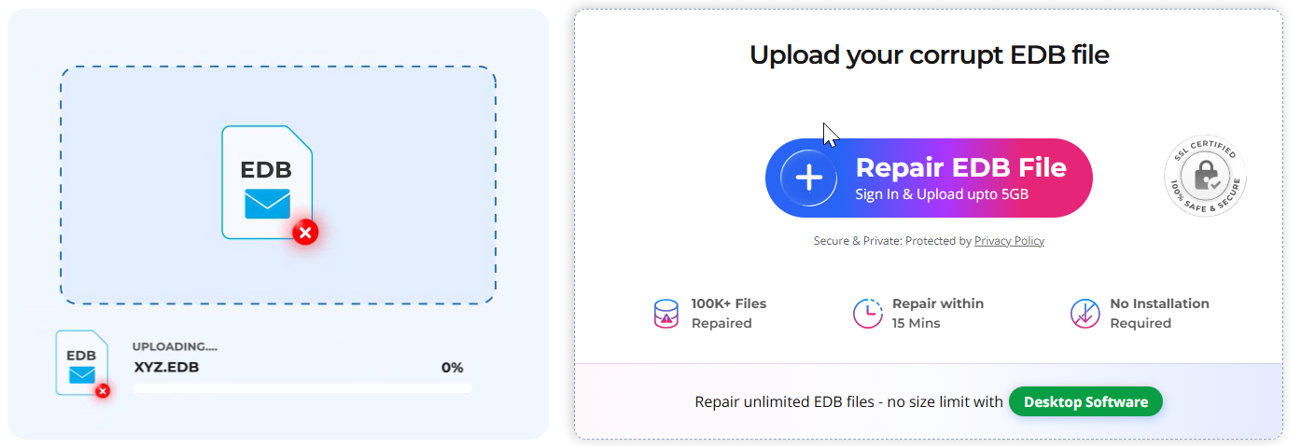
- Sign in and upload: Open Stellar Online Exchange Repair, sign in, and upload the corrupt EDB file.
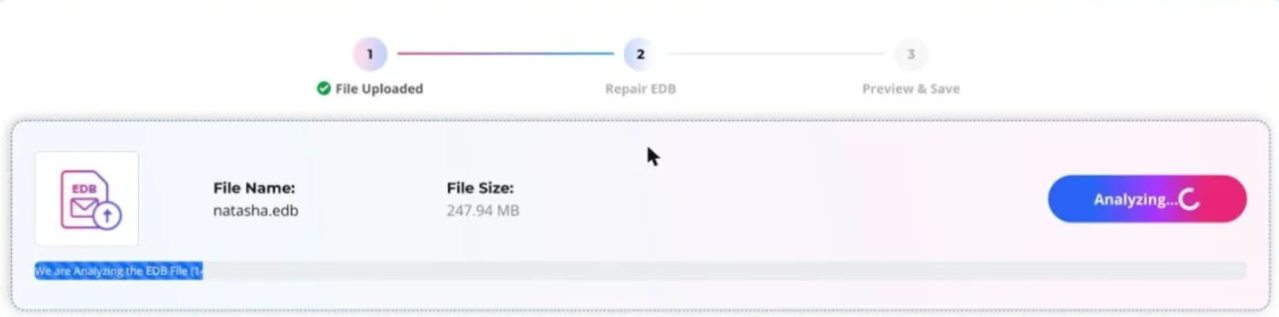
- Analyze and repair: Start the repair and wait while the service scans the file and rebuilds the mailbox data in a secure, automated environment.
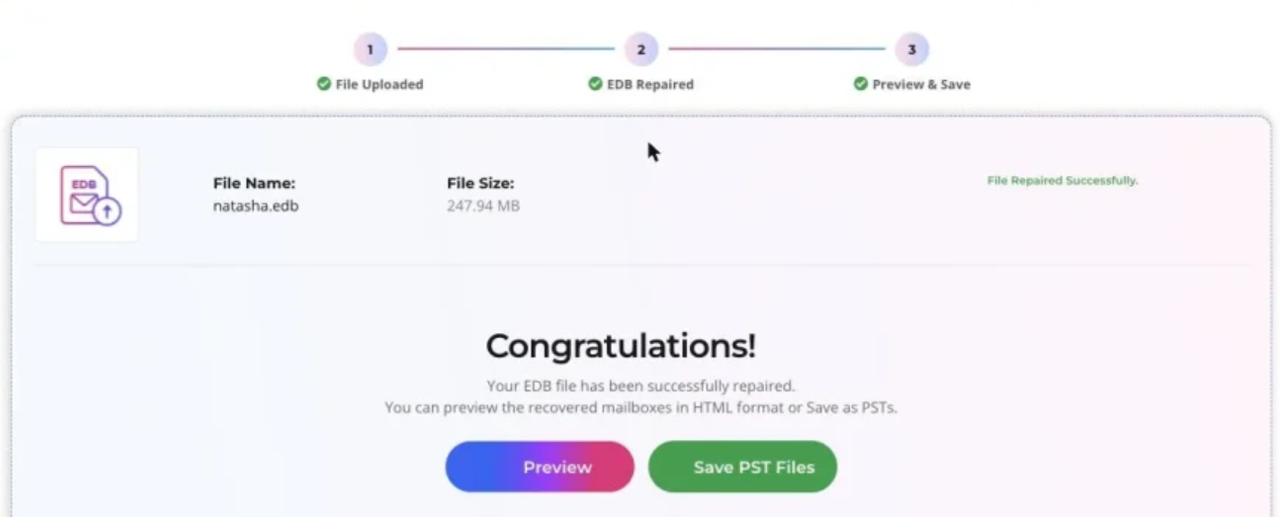
- Preview and download: Check the recovered mailbox folders and items, then download the mailboxes as PST files.
The free plan handles EDB files up to 500 MB, and the Premium plan raises the limit to 5 GB. Stellar says most online repairs finish in under 15 minutes, though the actual time depends on the file size, how badly it’s damaged, and how many mailboxes it holds. According to Stellar, uploads travel over an encrypted connection, the repair process is read-only, and uploaded and recovered files are deleted automatically within 24 hours on the free plan and 48 hours on Premium.
Note: For databases larger than 5 GB, severely corrupted files, or environments where mailbox data can’t leave your network, Stellar Repair for Exchange (desktop edition) is the better fit. It has no EDB file-size limit, works offline, and can export recovered mailboxes to PST, a live Exchange Server, or Microsoft 365.
Conclusion
Exchange databases get corrupted for many reasons, from a power cut to a failing disk to a bad update, and the right fix depends on what you still have. Start with eseutil /mh and soft recovery. If that fails, restore from a clean backup, activate a healthy DAG copy, or pull mailboxes out through a Recovery Database before you consider eseutil /p, since hard repair throws away whatever it can’t read. When there’s no backup or DAG copy to fall back on, an EDB repair tool such as Stellar Online Exchange Repair for smaller files, or Stellar Repair for Exchange for large ones, can recover mailbox data straight from the damaged file and get users back to their email.